

Short answer, as of November 14, 2026: GitHub's current documentation says Copilot content exclusion applies to inline suggestions and chat in the major IDEs, agents in IDEs, Copilot CLI, the GitHub Copilot app, Copilot in the cloud (which now includes the cloud agent), and Copilot code review.
It is also, in GitHub's words, "not a filesystem security boundary." Agents might not catch indirect file access, and third-party MCP servers and clients may ignore it entirely.
Older answers you'll find say content exclusion doesn't apply to the coding agent, agent mode or the CLI. Coverage has changed several times this year, so check the date on any source before you rely on it, including this one. Everything below links to the GitHub page it comes from.
What content exclusion actually does
When a file is excluded, Copilot treats it as invisible in four specific ways (GitHub Docs: Content exclusion for GitHub Copilot):
- Inline suggestions aren't available in the excluded file.
- Its content doesn't inform inline suggestions in other files.
- Its content doesn't inform Copilot's responses.
- It isn't reviewed in a Copilot code review.
Content exclusion is a Copilot Business and Copilot Enterprise feature. Repository administrators, organization owners and enterprise owners can configure it.
Where it applies, surface by surface
GitHub's availability table splits support into "inline suggestions" and "chat and agent." Here's what it says today (GitHub Docs: Availability of content exclusion):
- Visual Studio, VS Code, JetBrains IDEs: inline suggestions supported; chat and agent supported.
- Vim/Neovim: inline suggestions supported; chat not applicable.
- Xcode and Eclipse: inline suggestions supported; chat and agent not supported.
- Azure Data Studio: inline suggestions not supported.
- The GitHub Copilot app: chat and agent supported.
- GitHub Copilot CLI: chat and agent supported.
- Copilot in the cloud: chat and agent supported. GitHub defines this as chat and agent sessions started on the GitHub website, GitHub Mobile or in cloud sandboxes.
- Copilot code review: supported.
The separate supported surfaces reference lists content exclusion as supported for both kinds of cloud session: cloud sandboxes and GitHub Actions. That matters because some entry points, such as assigning an issue to Copilot, still run only on GitHub Actions.
The dated milestones we could verify:
- February 26, 2026: the REST API for managing exclusions went into public preview (changelog).
- June 12, 2026: Copilot code review started respecting repository, organization and enterprise exclusions (changelog).
- September 2, 2026: support became generally available in the Copilot app and Copilot CLI (changelog).
We didn't find a changelog entry that dates cloud agent coverage. Treat the docs tables as the authority, and test it yourself (see below).
What content exclusion does not cover
This is the part security reviewers need to read. GitHub's documented limitations (GitHub Docs: Limitations):
- It isn't a security boundary. GitHub calls it "a guardrail for the tools that GitHub controls."
- Third-party MCP servers and clients aren't guaranteed to respect it. If you allow an MCP server that reads your filesystem, assume it can read excluded files. That's one reason to allowlist MCP servers deliberately.
- Agents might not detect indirect file access. In an IDE, the CLI or the Copilot app, content exclusion stops the agent reading excluded files through Copilot tools. It also checks identifiable file paths in commands and scripts before running them. But GitHub says it "might not detect indirect file access." A script that builds a path at runtime is the obvious example.
- The IDE can leak semantic information. Copilot may still see type information, hover definitions and build configuration that the IDE derives from an excluded file.
- Symlinks and remote filesystems aren't covered.
- It's tied to your Copilot plan. Organization rules apply only to users who get their seat from that organization. Repository rules apply to Copilot users in the enterprise working in that repository. Enterprise rules apply to all Copilot users in the enterprise (GitHub Docs: Excluding content). A contractor using a personal Copilot plan on a clone of your code is outside all three.
Our rule of thumb: content exclusion is for keeping things out of prompts by accident. Repository permissions, secret scanning and OS-level access controls are for keeping things away from people and processes on purpose. GitHub says the same thing: content exclusion "is not a substitute for operating-system permissions or other access controls."
How to configure it: repository, organization, enterprise
All three levels use YAML-style path lists with fnmatch patterns, and the patterns are case-insensitive. The examples below come from GitHub's how-to, trimmed to the common cases.
Repository level
Go to Settings > Copilot > Content exclusion in the repository. Paths are relative to the repository root:
# Ignore one specific file
- "/src/some-dir/kernel.rs"

# Ignore files called secrets.json anywhere in the repository
- "secrets.json"

# Ignore files whose names begin with "secret"
- "secret*"

# Ignore files ending in .cfg
- "*.cfg"

# Ignore everything in or below /scripts
- "/scripts/**"
If the organization or enterprise also has exclusions that apply to this repository, they appear in gray boxes at the top of the page. You can't edit them there.
Organization level
Go to Organization settings > Copilot > Content exclusion. Here you name the repository first, then its paths. A "*" key matches files anywhere, including outside Git:
# All .env files, in any repository or outside Git
"*":
  - "**/.env"

# A repository in this organization
octo-repo:
  - "/src/some-dir/kernel.rs"

# A repository referenced by URL
https://github.com/primer/react.git:
  - "secrets.json"
  - "/src/**/temp.rb"

# The "copilot" repository in any GitHub organization
git@github.com:*/copilot:
  - "/__tests__/**"
  - "/scripts/*"
You can reference repositories with HTTPS, git://, SCP-style or ssh:// syntax, and Copilot matches them however the developer cloned the repository. The user@ and :port parts are ignored. For Azure DevOps, both the dev.azure.com and visualstudio.com host formats match. Exclusions can target repositories outside GitHub too. GitHub's own example excludes paths in a GitLab repository.
Enterprise level
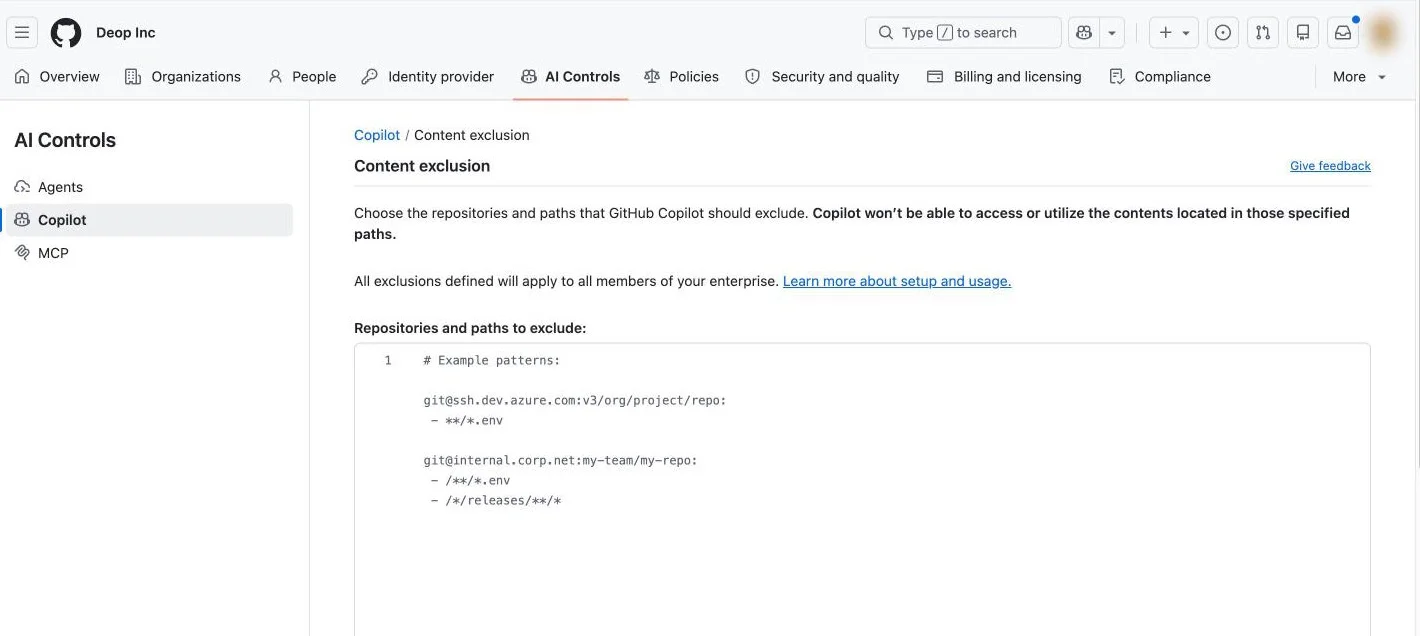
Go to Enterprise > AI controls > Copilot > Content exclusion. The syntax is the same as at the organization level. The difference is reach: enterprise rules apply to every Copilot user in the enterprise. If you only do one level, do this one, starting with credential and key files.
Through the REST API
Organization and enterprise owners can manage rules with GET and PUT on /orgs/{org}/copilot/content_exclusion and /enterprises/{enterprise}/copilot/content_exclusion. The API is in public preview (GitHub REST API docs). Two cautions from the docs before you script against it:
- A
PUTdeletes any comments in your existing rules. - Duplicate keys collapse to the last occurrence.
If your rules rely on comments to explain why a path is excluded, keep that explanation in the Git repository you deploy from, not in the rules themselves.
Test it before you tell anyone it works
Changes can take up to 30 minutes to reach IDEs that already have settings loaded. To force a refresh (GitHub Docs: Testing changes):
- VS Code: run Developer: Reload Window.
- JetBrains and Visual Studio: restart the IDE.
- Vim/Neovim: nothing to do. It fetches exclusions every time you open a file.
Then run GitHub's test in each client your developers use:
- Open a file that isn't excluded and confirm you get an inline suggestion.
- Make the same edit in an excluded file. You should get no suggestion.
- In chat, attach the excluded file as the only context and ask
explain this file. Copilot shouldn't use it, and it shouldn't appear in the response's references.
We add one more step for agents. In the CLI or the Copilot app, ask the agent to read an excluded file by path, then ask it to run a script that reads the same file. The first should be blocked. The second tells you how much to trust the "indirect access" caveat in your own setup. Write down the result per client, because coverage keeps changing.
Review who changed what
Every change is logged as copilot.content_exclusion_changed. The event includes the excluded_paths after the change (GitHub Docs: Reviewing changes to content exclusions). The bottom of each content exclusion settings page shows who last changed it and links to the matching audit log entries. Set an alert on that event in your SIEM.
Common questions
Does content exclusion apply to agent mode in VS Code?
Yes, according to current docs. VS Code is listed as supported for "chat and agent." For agents in an IDE, exclusion blocks access through Copilot tools and checks file paths in commands, but it might not detect indirect access.
Does content exclusion apply to Copilot cloud agent?
Current docs say yes. The cloud agent now runs as part of Copilot in the cloud, which is marked supported, and the supported surfaces reference shows content exclusion covering both cloud sandboxes and GitHub Actions. We'd still test it on a non-sensitive repository before relying on it.
Does it apply to Copilot CLI?
Yes. It's been generally available since September 2, 2026, and GitHub's CLI administration page confirms that enterprise, organization and repository exclusions apply.
Can a developer still open an excluded file?
Yes. Content exclusion changes what Copilot uses, not who can read the file. Use repository permissions for that.
Content exclusion is one control in a larger set. If you'd like help deciding what to exclude and testing it across your clients, talk to us about a Copilot governance review.