

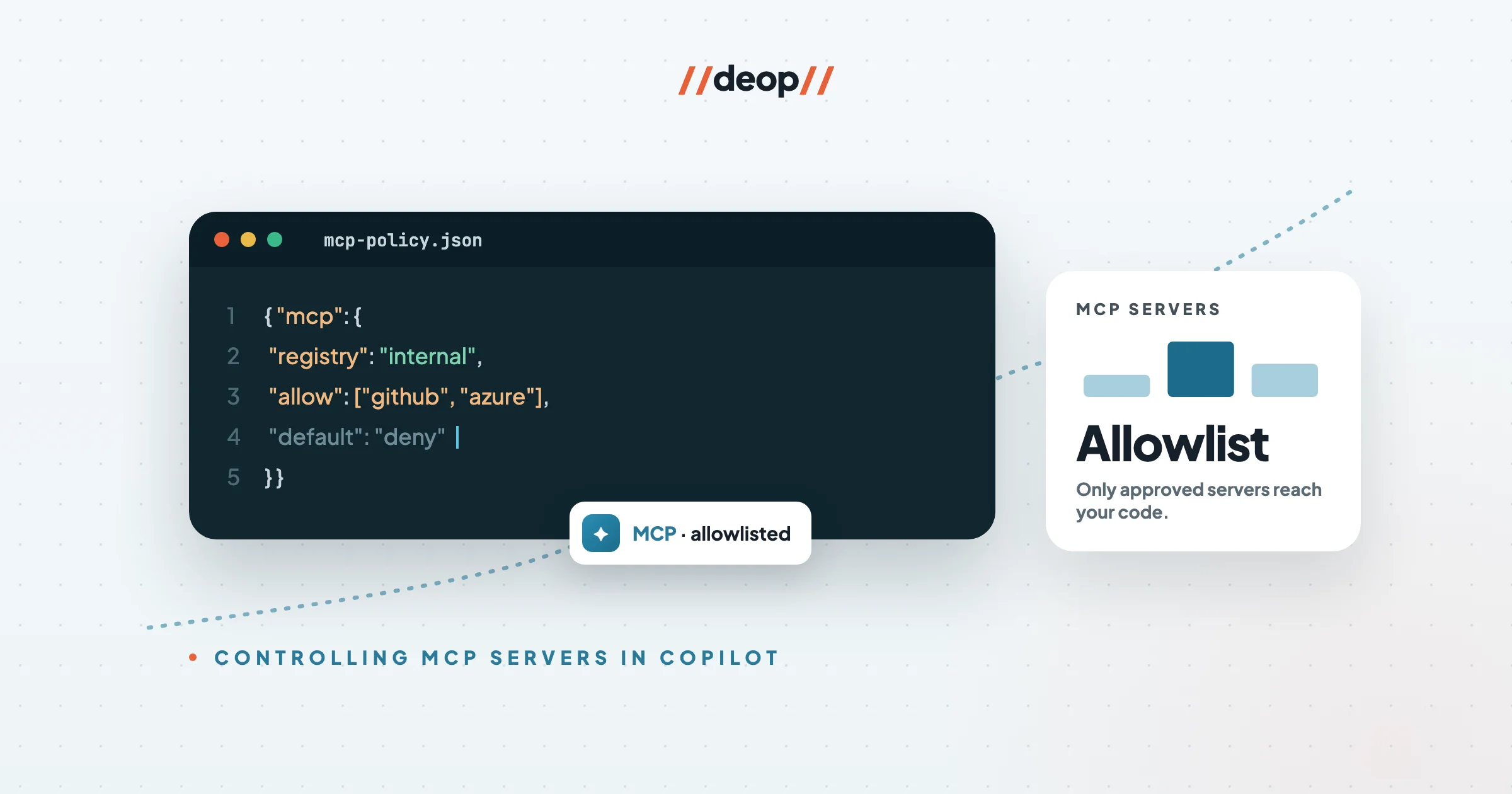
To control which MCP servers Copilot can use across an enterprise, you need two things:
- Turn on the MCP servers in Copilot policy.
- Define an allowlist and denylist with
allowedMcpServersanddeniedMcpServersin your enterprise'smanaged-settings.json.
That's GitHub's recommended, generally available method. The older approach, a private MCP registry with the Restrict MCP access to registry servers policy, is still there. GitHub now labels it public preview, "not prioritized for development," and bypassable by users who edit their configuration files (GitHub Docs: MCP server usage in your company).
This tutorial walks through the managed settings route step by step, explains where it doesn't reach, and covers when you still need the registry. Everything was checked against GitHub's docs on November 14, 2026.
Before you start: what each control does
There are four controls, and they stack:
- MCP servers in Copilot (policy): whether MCP servers can run at all across Copilot clients. It's disabled by default. It governs only users who get Copilot Business or Copilot Enterprise from an organization or enterprise that sets it. Copilot Free, Pro, Pro+ and Max users aren't governed by it (GitHub Docs: Model Context Protocol).
allowedMcpServersanddeniedMcpServers(managed settings): which servers may run, matched by name, URL or exact command.- MCP Registry URL and Restrict MCP access to registry servers (policy, preview): a discovery list, plus optional name-based enforcement.
- Repository MCP configuration (repository settings): the servers and tools that Copilot cloud agent, automations and Copilot code review use in that repository.
Two things the MCP policy doesn't do. It doesn't block built-in default servers such as the GitHub MCP server, which are always allowed and can't be denied. It also doesn't control the GitHub MCP server when it runs in third-party hosts like Cursor or Claude. GitHub points to the GitHub MCP Server repository's governance docs for that (GitHub Docs: Managing policies in your enterprise).
Step 1: Inventory the servers you'll allow
Start with a list, not a config file. For each server, record whether it's remote (HTTP or SSE) or local (stdio), its exact URL or launch command, what data it can reach, and who owns it internally. GitHub advises reviewing a third-party server's tools, authentication and data access before enabling it (GitHub Docs: MCP best practices). Remote or local decides your matcher: serverUrl never matches a local server, and serverCommand never matches a remote one.
Step 2: Enable the MCP policy
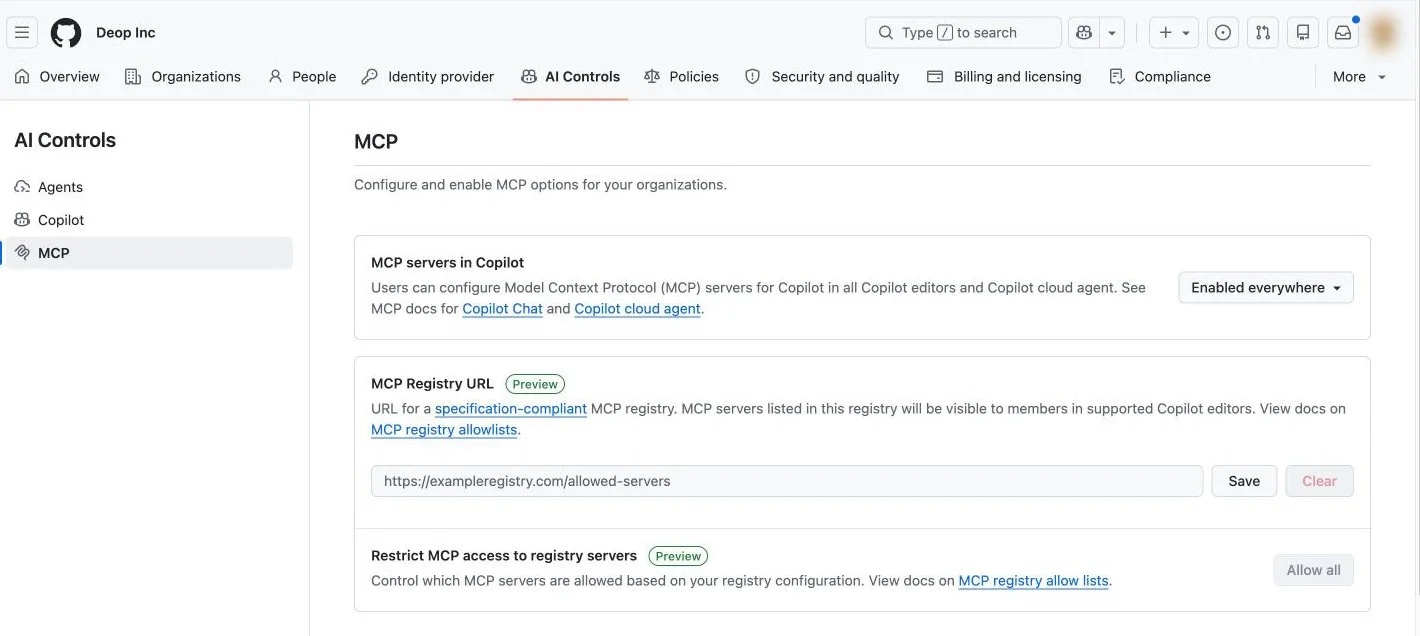
- Go to your enterprise, then AI controls.
- In the sidebar, click MCP.
- Set MCP servers in Copilot to enabled for the enterprise, or for the organizations that should be allowed MCP.
- If you previously set Restrict MCP access to registry servers to Registry only, change it to Allow all. You can also clear MCP Registry URL.
GitHub recommends step 4 so the allowlist and the registry don't conflict and you keep one source of truth (GitHub Docs: Configuring an MCP server allowlist).
One thing to know if you delegate this policy to organizations: a user licensed by several organizations gets the least restrictive result. If any of their organizations enables MCP, they have it (GitHub Docs: Policy conflicts).
Step 3: Create the governance repository
Managed settings live in a .github-private repository owned by one organization in your enterprise.
- Create
.github-privatefrom GitHub's governance template, or from scratch. - Go to Enterprise > AI controls > Agents.
- Under Configuration source, select the organization that owns the repository.
The settings apply to every user on your enterprise's Copilot plan, whether or not they can see the repository. GitHub recommends internal visibility, with edits restricted to administrators and AI managers (GitHub Docs: Creating a .github-private repository). Protect copilot/managed-settings.json with CODEOWNERS and a ruleset. That way an allowlist change is a reviewed pull request, not a quiet edit.
Step 4: Write the allowlist and denylist
Create copilot/managed-settings.json. This example is based on GitHub's reference. The last allowlist entry is a placeholder for an internal remote server:
{
  "allowedMcpServers": [
    { "serverUrl": "https://api.githubcopilot.com/*" },
    { "serverCommand": ["npx", "@playwright/mcp@latest"] },
    { "serverUrl": "https://mcp.internal.example.com/*" }
  ],
  "deniedMcpServers": [
    {
      "serverCommand": [
        "npx", "-y",
        "@modelcontextprotocol/server-filesystem",
        "/"
      ]
    }
  ]
}
The three matchers behave differently (GitHub Docs: Enterprise managed settings, allowedMcpServers):
serverUrlmatches remote servers and supports*wildcards for subdomains or path prefixes. The client normalizes URLs first (lowercase host, Punycode, default ports stripped, host wildcards kept out of the path), which makes look-alike URLs harder to sneak past.serverCommandmatches the exact command and every argument of a local server. There are no wildcards. If a team pins a different version in its arguments, it won't match.serverNamematches the label the user assigned, exactly. Users choose these labels, so GitHub advises usingserverUrlorserverCommandwhen you need to enforce a server's identity. In-memory servers can only useserverName.
Each entry must contain exactly one matcher. Clients then evaluate in this order (GitHub Docs: Evaluation rules):
- Built-in default servers are always allowed.
- Anything matching
deniedMcpServersis blocked. - If
allowedMcpServersexists, anything not matching it is blocked. - Any server whose URL or command contains an unresolved variable, such as
${VARIABLE}, is blocked.
Three behaviours are worth knowing before you ship:
- Malformed JSON fails closed. It's treated as an empty allowlist, which blocks everything except built-in servers. That makes it worth having a CI check that parses the file before you merge.
- Retrieval errors keep the last good policy. If a client can't fetch the settings, it keeps the policy it last enforced, so the effective policy can only get stricter, not looser.
- Multiple sources combine strictly. If settings arrive through more than one deployment method, a server must match the allowlist at every layer that defines one, and a deny from any source wins.
Step 5: Decide what to do about Copilot connectors
Copilot connectors are GitHub-verified remote MCP servers, so the allowlist governs them too. If you define allowedMcpServers, connectors are blocked unless their URL matches an entry. To allow all of them, including ones added later, add this entry:
{ "serverUrl": "https://api.github.com/copilot-connectors/api/v1/connectors/*/mcp" }To allow only specific connectors, list each one's URL instead. GitHub publishes the full list. For example, Slack is .../connectors/githubcopilotslackmcp/mcp. To block a connector, add its URL to deniedMcpServers. Because connectors are in public preview, the Editor preview features policy must also be enabled for them to work (GitHub Docs: Allowing Copilot connectors).
Step 6: Give specific teams a different list
Both keys can be overridden for enterprise teams:
- In
managed-settings.json, wrap the matcher objects inoverridable. - Put each team's list in a file under
copilot/teams/, using the normal syntax. - Map team slugs to those files in
copilot/team-mappings.json.
This setup is documented in GitHub Docs: Getting started with enterprise-managed settings. It's how you let a platform team trial a new server without opening it to everyone.
Step 7: Validate and roll out
- Commit to the default branch.
- Check the Copilot settings validation section on the enterprise Agents tab. It names the file and JSON path for each error, and it isn't shown when there are no issues.
- Wait about an hour for supported clients to pick up the change, or restart or sign in again to refresh immediately.
- Confirm on a test machine that an unlisted server is refused and an allowed one starts.
Users licensed by more than one billing entity must select your enterprise under "Usage billed to" in their personal Copilot settings to receive these settings (GitHub Docs).
Where the allowlist doesn't reach
This is the section to share with your security team. According to the managed settings client support table, allowedMcpServers and deniedMcpServers are supported in:
- Copilot CLI
- VS Code
- the GitHub Copilot app
- JetBrains IDEs
- Copilot in the cloud when it runs in a cloud sandbox
The gaps:
- Copilot in the cloud on GitHub Actions isn't supported. That matters because some entry points, such as assigning an issue to Copilot, still run only on Actions. One GitHub page describes server-managed settings as applying "to all clients, including Copilot cloud agent," while the key table marks the Actions environment unsupported. Go with the key table, and use the firewall and repository MCP configuration for that path.
- Visual Studio, Eclipse and Xcode aren't on the managed settings client list. For these, the private registry with "Registry only" is the documented enforcement, with minimum versions of Visual Studio 18.4.0+, Eclipse 4.38+ and Xcode 0.47.0+ (GitHub Docs: MCP private registry enforcement).
- MCP servers in repository custom agent profiles aren't covered. GitHub's workaround is to make sure the domains those servers need aren't allowed by the organization or repository firewall.
- Personal Copilot plans aren't covered by server-managed settings, which follow your enterprise's licenses. MDM and file-based delivery apply to the device whatever the license (GitHub Docs: Choosing how to deploy).
When you still need the private registry
Use a registry if developers on Visual Studio, Eclipse or Xcode need enforcement, or if you want a curated catalogue for discovery. The requirements (GitHub Docs: Configure an MCP registry):
- It must implement the v0.1 MCP registry specification, including
GET /v0.1/serversand the version endpoints. - It must send CORS headers allowing
GET, OPTIONS. - Azure API Center can host it as a managed MCP registry, with anonymous read access enabled. Enter only the base URL including the workspace path, because Copilot appends
/v0.1itself.
Then set the MCP Registry URL and choose Allow all or Registry only (GitHub Docs: Restrict MCP server access to a custom registry). Keep its limits in mind:
- Enforcement matches on server name or ID only.
- "Registry only" blocks Copilot connectors.
- Local servers must be in the registry with an exactly matching ID.
- Registry enforcement isn't supported in Copilot in the cloud.
- When a user has several seats, enterprise scope beats organization, "Registry only" beats "Allow all," and the most recently uploaded registry breaks any tie.
Lock down repository MCP for the cloud agent
Repository administrators configure MCP for Copilot cloud agent, automations and Copilot code review under Settings > Copilot > MCP servers. GitHub warns that Copilot uses these tools autonomously, without asking for approval (GitHub Docs: Configure MCP servers for your repository). So:
- List specific tools, preferably read-only ones, in the
toolsarray instead of*. - Store credentials as Agents secrets prefixed
COPILOT_MCP_. Only those are passed to the configuration. - Expect remote servers that use OAuth not to work here today. Only MCP tools are supported, not resources or prompts.
- For code review, tools must declare
annotations.readOnlyHint: true, or they're excluded.
GitHub's cloud guardrails tutorial also recommends putting Copilot and MCP configuration files under CODEOWNERS with required code owner review.
Common questions
Can I block the GitHub MCP server?
No, not inside Copilot. Built-in first-party servers are exempt from deny rules. Govern what it can reach through token scope and repository permissions instead.
Does the MCP allowlist apply to developers using Copilot with a personal plan?
Not through server-managed settings or the MCP policy. Device-level delivery through MDM or a file in the OS-specific location applies regardless of the license.
The MCP allowlist is one part of a wider Copilot policy set. If you'd like help designing the allowlist and the review workflow around it, see our Copilot enablement service.